


Picta x CVS Photo Print
4.82.36K Reviews
App Specs
- Version
- 10.46.0
- Updated On
- License
- Free
- Downloads
- 100,000+
- Developer
- Pictarine - Printing Photos
- Categories
- Photography
- Platform
- Android
Screenshots
 Analysis by AppCompare
I like photo-printing apps most when they remove the awkward part between taking a picture and actually putting it in my hands. Picta x CVS Photo Print is built around that simple idea: I choose images on my phone, select a print size, and use CVS Pharmacy Photo Print for same-day pickup. It is a free photography app from Pictarine - Printing Photos, aimed at people who want physical copies without sitting at a computer or visiting a photo counter first.
That convenience is real, but it depends on getting a few practical details right. The app is not a general photo editor, a cloud album, or a replacement for every online printing service. Its strongest use case is much narrower and more useful: preparing ordinary phone photos for pickup at CVS. Once I viewed it that way, the experience made more sense. The important questions are not just whether the app can print a picture, but whether the chosen image fits the selected paper, whether the store is ready, and whether I have allowed enough time for a same-day order.
Where the experience can get stuck
The first point of friction is usually not the app itself. It is the difference between a phone image and a physical print. A photo that looks perfect on a tall screen may be cropped when I choose a traditional rectangular size. If I select a square format, the composition can change again. Faces near the edge, handwritten signs, pets at the side of a frame, and screenshots containing text are especially easy to trim accidentally.
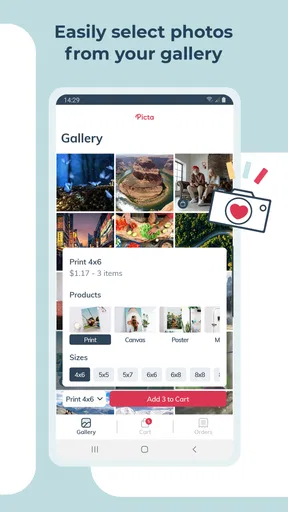
Picta x CVS Photo Print offers several familiar formats, including 4x6, 6x6, 5x7, 6x8, 8x8, and 8x10. That range is useful because it covers quick snapshots as well as larger wall or gift prints. It also means I should decide what the picture is for before choosing a size. A 4x6 is a natural choice for an album or small frame, while a square image may suit a social-media-style composition better. Choosing the largest option simply because it is available can expose softness or cropping that was not obvious on a phone.
Another common snag is assuming that “same day” means “ready immediately.” I would treat it as a pickup goal rather than a promise that every order is completed the moment it is submitted. Store workload, opening hours, image preparation, and the selected product can all affect the practical timing. If I need pictures for a birthday, school project, travel departure, or memorial display, I would place the order with a comfortable buffer instead of waiting until the last possible moment.
The store choice matters too. The app connects the order to CVS Pharmacy Photo Print, so the selected location is part of the workflow, not a minor detail. Before sending a large batch, I would check that the chosen CVS is convenient to reach and that I can collect the order there. A technically successful order is not very helpful if it is attached to the wrong branch or to a location that is difficult to visit.
There is also a difference between a photo that is emotionally important and one that is technically ready to print. The app can help me submit an image, but it cannot restore detail lost through heavy cropping, messaging-app compression, or a screenshot. For an old family picture, I would first find the highest-quality original in my camera roll or backup rather than printing the copy that has been shared repeatedly.
Worth Reading Before You Choose

EA SPORTS FC Mobile 26 Is a Bigger Football Game, but It Takes Time

Flipboard Shows What News Apps Must Do Beyond the Feed

Switching to Android Auto Means Rethinking Your Driving Routine

Google Calendar Makes a Crowded Week Easier to Manage

Ludo King Makes the Most of the Minutes Between Plans

Baby Panda World Brings Quick Play to Modern Phones, but Its Game Library Feels Busy
What I check before selecting a size
My most useful habit is to inspect the edges of every important image before adding it to an order. I look for fingers, heads, captions, and objects that sit close to the border. I also check whether the subject is centered in a way that survives a different aspect ratio. This takes longer than tapping through a whole album, but it prevents the most disappointing result: a clean-looking print with an accidentally cut-off person.
For a batch, I would group photos by purpose instead of treating the camera roll as one large pile. Vacation images for an album may work well as standard rectangles. Portraits intended for frames may need a different size. Square images can be kept together so I do not repeatedly switch back and forth while ordering. This small bit of organization reduces mistakes and makes the final pickup easier to sort.
The important trade-off is speed versus control. Picta x CVS Photo Print is attractive when I want a straightforward store pickup, but it is not the right tool for someone who wants a highly managed fine-art workflow. If exact color matching, specialized paper, detailed retouching, or elaborate photo-book design is the priority, a dedicated printing service may offer more control. For everyday snapshots, the simpler path is often the better one.
Setup checks that prevent avoidable problems
Getting started is uncomplicated in principle: install the app on a compatible device, open the photo-printing workflow, choose pictures, select a CVS location, and review the order. The app is free, and it is rated for Everyone, which makes it approachable for households where different people may be placing occasional print orders. It was released on November 9, 2019, and the current version is 10.46.0, with Android support beginning at version 8.0.
I would still do a few checks before beginning a large order. First, I would make sure the phone has a stable connection. Uploading a handful of pictures is very different from preparing a full vacation album, and a weak connection can make the process feel frozen even when the problem is simply unfinished transfer work. If the image grid loads slowly, I would avoid tapping repeatedly; repeated taps can create uncertainty about whether an item was selected once or more than once.
Second, I would confirm that the photos I want are actually available on the device. Some phone galleries show cloud-backed images alongside locally stored ones. If an image has not finished downloading, the app may not be able to use it smoothly. My practical approach is to open the photo in the phone’s gallery first and wait for the full-resolution version to appear, especially when the picture is older or has been moved between devices.
Third, I would review the store and pickup details before spending time on the entire batch. This is one of the easiest steps to postpone and one of the most annoying to correct later. I would check the selected CVS branch, the pickup plan, and the sizes attached to the order. A quick review at this stage is much easier than discovering an error after submission.
The app’s strong public reception suggests that the basic workflow works well for many people: it holds an average rating of 4.8 from around 13 thousand ratings, with roughly 2.4 thousand written reviews. Those figures are encouraging, but they do not remove the need to inspect an order personally. Ratings describe broad satisfaction; they cannot tell me whether a particular image has an awkward crop or whether a chosen store fits my schedule.
I also appreciate that the app has passed the hundred-thousand-install mark without pretending to be something broader than it is. Its identity is clear: a photography utility for sending pictures to CVS for printing. That focus is a strength for casual users, although someone looking for editing tools, storage management, or a complete creative studio may find the experience limited.
A more reliable first order
For my first use, I would start with a small group of images rather than the entire camera roll. Three or four photos are enough to test the selection process, the chosen sizes, and the pickup location. This is a practical way to learn how the workflow behaves on a particular phone without creating a large order that needs correcting.
I would also keep the original files untouched. If I want to experiment with cropping or basic edits in another app, I would save a separate copy and leave the camera original available. That matters when I later decide that a different print size would suit the image better. Re-editing a compressed or heavily cropped copy can make the final result worse.
One less obvious tip is to review photos in the same lighting conditions in which I will judge the prints. A bright phone screen can make a dark image look more balanced than it will on paper. I would lower the screen brightness to a normal indoor level and look at shadows, faces, and small text again. This does not guarantee a perfect color match, but it gives me a more realistic expectation than judging everything at maximum brightness.
Recovering when the workflow goes wrong
If an order seems stalled, I would first identify exactly where it stopped. There is a meaningful difference between a photo not appearing in the selection screen, an upload taking too long, a store detail looking wrong, and a submitted order waiting for pickup. Restarting everything immediately can hide the useful clue.
When a picture is missing, I would return to the phone gallery and confirm that it opens fully. I would also check whether I am viewing a filtered album rather than the main camera roll. Photos saved from messaging apps, screenshots, downloads, and editing tools may live in different folders. The problem may be that I am looking in the wrong place, not that the app has lost access to the image.
When the selection screen behaves slowly, I would reduce the batch and try again with a few images. Large groups are convenient, but smaller groups make it easier to identify a troublesome file. An unusually large image, an incomplete cloud download, or a file created by another app can be isolated this way. I would avoid repeatedly pressing the order button while waiting, because that can make it harder to tell whether the first attempt is still processing.
If the wrong size is attached to a picture, I would pause before submitting rather than hoping the store will interpret my intention. The print format is part of the order. A square image assigned to a rectangular print may be cropped, and a wide image assigned to a taller format may leave a composition I do not like. The safest recovery is to return to the image and size review, then make the choice deliberately.
For an order that has already been sent, I would keep the order information available and contact the selected CVS location if the pickup timing becomes important. I would not assume that closing the app cancels anything, nor would I immediately create a duplicate order because the status is taking time to update. Duplicate submissions are especially easy to make when I am ordering a large batch for an event.
When a smaller test is smarter than a full retry
A useful recovery method is to change only one variable at a time. If the first attempt used many images, try fewer. If it used a large format, try a standard one. If the issue appeared after switching stores, return to the previously selected location. This approach is slower than blindly repeating the same process, but it tells me whether the difficulty comes from the image group, the format, the store selection, or the connection.
I would also take screenshots of important order details for my own reference before leaving the checkout flow. The purpose is not to create a second record that replaces the app’s order status. It is simply a way to remember the selected store, sizes, and general contents while I am traveling to pickup. This is particularly helpful when several family members are placing separate orders from one phone.
For a last-minute need, I would choose a small, uncomplicated batch and use common print sizes rather than testing every available format. The more variables I introduce under time pressure, the more likely I am to notice a crop or location mistake too late. Picta x CVS Photo Print is at its best when I use its speed for a clear, modest task rather than forcing it to manage a complicated project at the last minute.
When the app is not the cause
Print quality complaints are often blamed on the ordering app, but the source image is usually the first thing I would examine. A blurry original, a low-resolution download, or a photo enlarged far beyond its natural detail will remain imperfect on paper. The app can transmit the file, yet it cannot turn a soft image into a sharp one.
Cropping is another area where expectations matter. Phone cameras use several aspect ratios, and the paper formats available through the app do not all match them. If a person is close to the edge, selecting a different size can change the framing. I would rather accept a little empty space or choose a more suitable format than lose part of the subject just to fill every corner.
Color can also look different between a phone display and a physical print. Screens emit light; paper reflects it. A bright, saturated image may appear more subdued in a room, while a dark image may lose detail in its shadows. I would not use the phone’s maximum brightness as the standard for judging what the print should look like. If exact color is essential for professional work, I would choose a service designed around that requirement instead of expecting a quick CVS pickup workflow to behave like a calibrated studio process.
Sometimes the practical issue is simply the store. A delayed pickup, an unavailable item, or a location-specific problem does not automatically mean the app failed. I would separate the digital part from the retail part: confirm that the order was submitted correctly, then deal with the selected CVS branch if the collection stage is the problem. That distinction helps avoid unnecessary reorders.
Compared with sending photos to a traditional online lab, this app favors immediacy and local convenience over a broader range of finishing choices. Compared with printing directly from a computer, it removes the need to transfer files and prepare a separate upload session. Compared with a full mobile photo editor, it offers a more direct path to paper but is not intended to replace detailed editing. I see that specialization as honest rather than restrictive.
There are people I would not recommend it to. If you need a large archival project, custom framing, carefully managed color, or extensive layout control, I would look at a service built for those jobs. I would also skip it when I cannot reach a CVS location conveniently or when I need guaranteed control over every production detail. The app makes ordinary prints easier; it does not make every kind of printing problem disappear.
My practical verdict for everyday printing
My favorite use case is a small, time-sensitive memory project. Imagine returning from a family weekend with a crowded camera roll and realizing that one relative does not use shared albums. I would select the clearest group photos, inspect the edges, choose a sensible size for an album, and send them to a nearby CVS for pickup. That is faster and more tangible than leaving the pictures buried in the phone, while still being simple enough to complete without a desktop.
I also think it works well for a child’s school display, a temporary collage, a travel scrapbook, or a small set of pictures for an older family member. The available sizes let me match the print to the purpose instead of using one format for everything. The key is to keep the order focused and to review the crop rather than treating the process as an automatic export.
The developer, Pictarine - Printing Photos, has kept the product’s purpose easy to understand. It is free to install, supports a broad Everyone audience, and is available for Android devices running version 8.0 or later. I would still check the app’s current behavior on my own phone before preparing a major order, particularly if the device is older or the photo library is stored mostly online.
After using it, I would describe Picta x CVS Photo Print as a practical bridge between a phone gallery and a local print counter. Its real advantage is not sophisticated editing; it is reducing the number of steps between selecting a picture and collecting a physical copy. Its main weaknesses are the same areas where quick printing usually needs human attention: aspect-ratio decisions, image quality, store selection, and timing.
My recommendation is simple: use it when you want ordinary photos quickly and can review the order carefully before submitting it. Start with a small test, choose the format around the image rather than the other way around, and leave pickup time for real-world delays. If your priority is local convenience, the app earns a place on my phone. If your priority is professional control or elaborate photo products, I would choose a more specialized alternative.
Pros
- Conveniently order prints from your phone without visiting a store.
- CVS pickup can be useful when you need photos quickly.
- Supports common photo sizes for everyday printing needs.
- Simple ordering process is approachable for casual users.
- Lets you print selected images directly from your device.
Cons
- Print quality may vary depending on the original image resolution.
- Store pickup availability can differ by location and time.
- Some print sizes or products may cost more than expected.
- The app may require access to your photos and personal information.
- Large orders can take time to upload over slower connections.
FAQs for Picta x CVS Photo Print
What is Picta x CVS Photo Print, and what can I use it for?
Picta x CVS Photo Print is a mobile photo-printing service that lets you select pictures from your phone and order physical prints through CVS Photo. After choosing your images, you can usually adjust basic options such as print size, quantity, and pickup location. It is mainly useful for quickly turning digital photos into prints without visiting a store to place an order manually.
How do I order photo prints through Picta x CVS Photo Print?
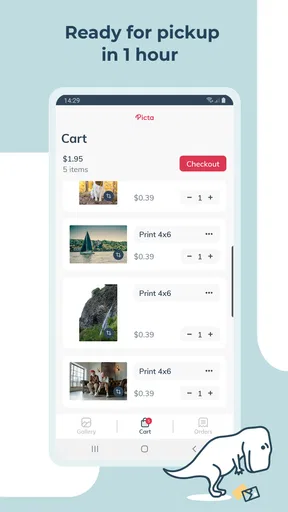
To place an order, open the app, allow access to the photos you want to print, choose the images, and select the available print sizes and quantities. You then select a participating CVS location for pickup, review the order details, and submit payment if required. Before confirming, carefully check the crop preview, store location, pickup time, and total price.
How much does printing cost, and are there additional fees?
The final price depends on the print size, quantity, paper or finish options, promotions, and the CVS store handling the order. Some orders may also include applicable taxes or service charges, while pickup is generally different from delivery pricing. Because offers and prices can change, review the checkout summary in the app before submitting your order rather than relying on an advertised starting price.
How long does CVS Photo take to prepare an order, and how do I collect it?
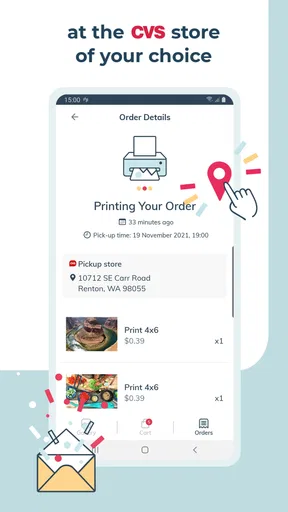
Preparation time can vary according to the selected product, order volume, store availability, and whether the item is a standard print or a specialized photo product. The app should provide an estimated completion time and may notify you when the order is ready. Bring the relevant order information to the selected CVS location, and confirm store hours before traveling.
What should I know about privacy, photo access, and image quality?
The app needs permission to access photos so you can choose images for printing, but you should review the requested permissions and disable access later if you no longer use the service. For better results, select original, high-resolution images and inspect the crop preview carefully. Photos shared through editing or messaging apps may be compressed, which can make printed results look softer or less detailed.


